JFG-Studio
JFG-Studio is the level and modpack editor for
Jet Force Gemini: Recompiled . You build levels on your own geometry,
place the game’s objects, set up planets, triggers, weapons and music, and press Play: Studio builds the
.nrm, installs it into the port and starts the game in your level.
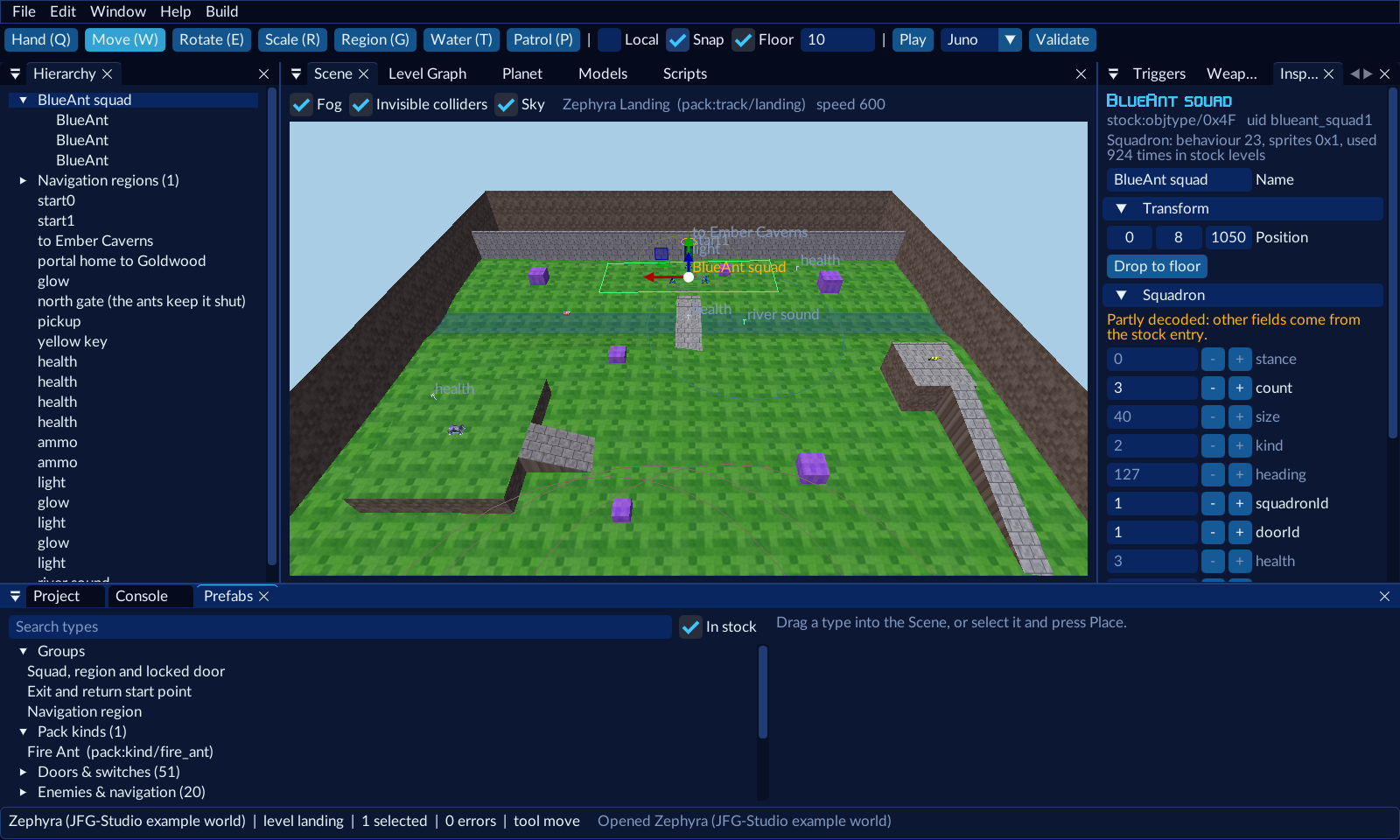
The layout
The editor works like a game engine’s: dockable windows you can drag, tab together or close (Window menu to get them back, Window › Reset layout for the default).
| Where | Windows | For |
|---|---|---|
| Top | Menus, toolbar | Files, undo, tools (Move, Rotate, Scale, Region, Water, Patrol), Play, Validate |
| Left | Hierarchy | The open level’s objects, squads with their members under them |
| Centre | Scene, Level Graph, Planet, Models, Scripts | The 3D view of the level; the other tabs for the whole project |
| Right | Inspector, Level, Kinds, Triggers, Weapons | The selected object’s fields; the level’s settings; project-wide content |
| Bottom | Project, Console, Prefabs | Levels and planets; build and validator output; everything you can place |
| Bottom edge | Status bar | Project name (with * when unsaved), level, selection, errors, tool, last message |
Every window is described on Windows and tools.

How a project becomes a mod
Edit
Everything you make is saved in a project folder (my_planet.jfgproj): levels, objects, planets, kinds, triggers,
weapons, scripts, music and your geometry. It holds no game data: only your own files and references such as
stock:objtype/0x78 (the game’s BlueAnt).
Validate
Studio checks the project against the game’s rules as you edit: the Console lists every problem, and clicking one selects the object it’s about. Errors stop a build.
Build
Build › Build pack writes build/<mod id>.nrm. The build reads your ROM for the entries your pack copies, imports
your geometry with the game’s own track importer, and writes the pack’s files.
Play
Play (or Build › Play in game) builds a copy of the project as it is, unsaved edits included, installs it
into the port’s mods folder and starts the game in the open level, at the selected start point, as the hero chosen
next to the Play button. Only your pack is loaded for that run.
Keys
| Key | Does |
|---|---|
| Q W E R | Hand, Move, Rotate, Scale |
| G T P | Region, Water, Patrol tools |
| F | Frame the selection (or the whole level from above) |
| Delete, Ctrl+D | Delete, duplicate the selection |
| Ctrl+Z, Ctrl+Y | Undo, redo (per level) |
| Ctrl+S, Ctrl+O | Save, open |
| Right mouse + WASD, Q/E | Fly the camera (down / up); Shift for 3× speed; the wheel changes speed |
| Middle mouse drag | Pan |
| Alt + left drag | Orbit around the selection |
Good to know
- Undo covers level edits only: objects, the Level window and Water-tool geometry. Planets, galaxies, kinds, new levels, triggers, weapons and scripts have no undo yet, so save often.
- Scripts save separately: press Save script before switching to another script file.
- No delete in the UI for levels, planets or kinds yet: remove their files from the project folder.
Next: Your first planet, or open the example world.