Windows and tools
Every menu, tool and window in JFG-Studio, in the order you meet them.
Menus
| Menu | Item | Key | Does |
|---|---|---|---|
| File | New project… | The New project dialog | |
| File | Open project… | Ctrl+O | Pick a .jfgproj folder |
| File | Save | Ctrl+S | Saves the project, levels, planets, kinds, galaxies, and triggers and weapons when changed |
| File | Import geometry… | Copies a .glb into geometry/ and checks it | |
| File | Settings… | The decomp, port and ROM paths | |
| Edit | Undo, Redo | Ctrl+Z Ctrl+Y | Per level |
| Edit | Duplicate, Delete | Ctrl+D Delete | The selection |
| Edit | Frame selection | F | The camera frames the selection, or the level from above |
| Window | one item per window, Reset layout | Show or hide windows; the default layout | |
| Help | Open log folder | Studio’s crash logs | |
| Build | Validate, Build pack, Play in game | Check, build build/<mod id>.nrm, build and play |
Toolbar

| Tool | Key | Does |
|---|---|---|
| Hand | Q | Pan and orbit only (clicking still selects) |
| Move | W | Move the selection (any number of objects together) |
| Rotate | E | Turn one object about the vertical axis, if its type has a facing |
| Scale | R | Size one object, if its type has a size |
| Region | G | Click a navigation region’s corners on the floor; Enter or the first corner finishes, Backspace removes the last, Esc cancels |
| Water | T | Drag a rectangle on the floor: a water surface goes into the level’s own geometry. Auto height puts it 15 above the floor where you start |
| Patrol | P | Click points of a squad patrol network, each linked to the last; click a point to link to it; Esc starts a new chain |
- Local: the move handles follow the object’s facing.
- Snap: moves in steps of the grid size, turns in 5.6° steps.
- Floor: moved objects drop onto the floor under them, a little above it (8 units for enemies, squads and start points, 2 for the rest) so they don’t spawn inside a slope.
- Play: builds, installs and starts the game in this level at the selected start point (else 0), as the hero picked beside it.
Scene
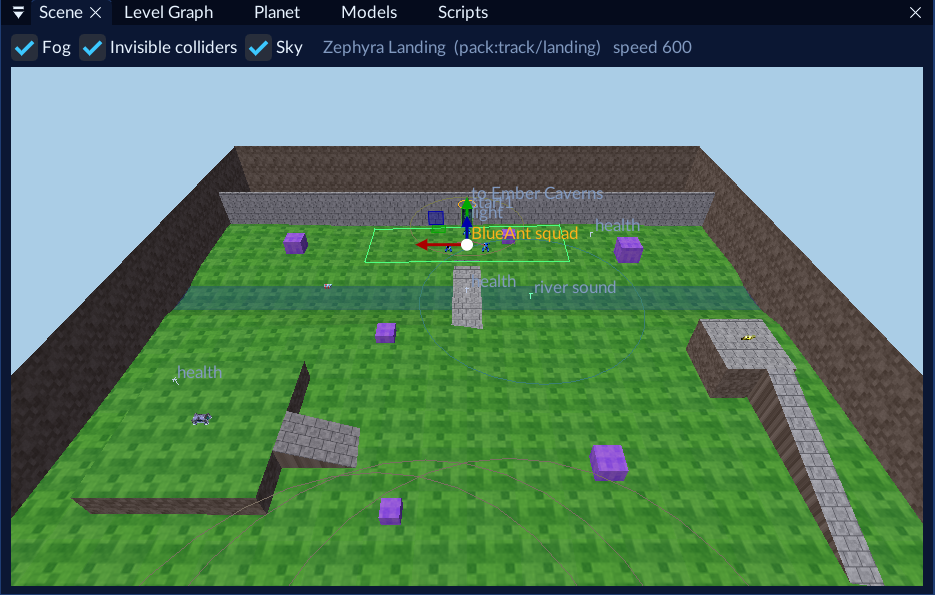
The open level in 3D: your geometry (or a stock track) with textures, vertex light and fog. Water is see-through blue, lava orange, kill floors red, invisible colliders a wireframe. Objects the catalog has a model for are drawn as that model; the rest are coloured markers: start points light blue with an arrow, exits orange with their radius, squadrons red, members pink, doors purple, region corners green, lights yellow. Rings show ranges (a light’s reach, a sound’s range); lines join region corners, patrol links, members to their squadron, and squadrons to their doors.
- Header: Fog, Invisible colliders and Sky checkboxes, the level and its track, and the fly speed.
- Select: click a marker or model; Ctrl+click adds or removes; drag on empty space for a box.
- Camera: right mouse to look, with WASD/QE to fly (Shift 3×), wheel for speed, middle mouse to pan, Alt+left drag to orbit.
- Place: drag a row from Prefabs into the Scene.
- In a stock-level edit, the level’s own objects show in a dim blue and can’t be selected.
Hierarchy
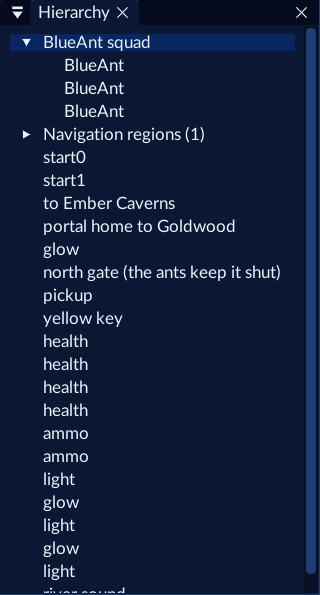
The open level’s objects. Click to select, Ctrl+click to add.
Inspector
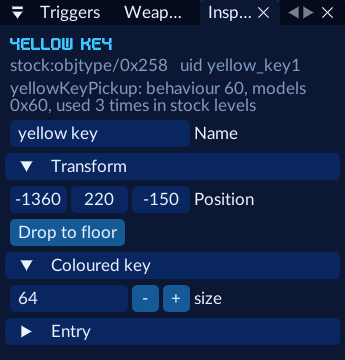
- Name is for you only (the game doesn’t see it).
- Transform: position, and Drop to floor.
- Destination (exits): Leads to any of your levels or a stock level, the Start point to arrive at (only ones the level has), and Create return exit, which adds the way back in your target level. An exit’s arg1A field is 1 by default, as on most of the game’s exits: it shows the stats screen when the exit leads into another region. Set it to 0 for an exit that shouldn’t.
- The type’s fields: named values are lists, the rest numbers. Dimmed values still come from the stock entry the object was copied from. “Partly decoded” means some of the entry’s bytes are kept as they are.
- Entry (closed): the raw bytes, for checking.
Level
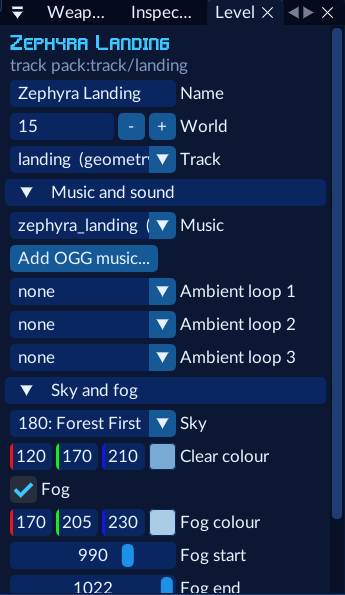
- Name, World (0–15; 15 is free in the stock game) and Track (one of your
.glbfiles). - Planet: puts the level in that planet’s region. An exit that leaves the planet then shows the game’s “Area Cleared” stats screen, and entering the planet shows its name, its galaxy and the continues. The build sets the region for you (Planet regions). None keeps the level out of any region: no stats screen, no continues.
- Music and sound: a stock tune or one of your OGGs (Add OGG music…), and three ambient loops.
- Sky and fog: a stock sky or the clear colour, Fog with its colour, start, end and third value (the game’s depth units, 900–1023).
- Camera and effects: field of view, light slots, weather, day length, underwater lights, the saved-flag region (a planet’s levels get theirs from the build), night vision, refraction, blur.
Project

Click a level to open it. New level makes one on your first geometry; Edit a stock level… adds to one of the game’s levels (your objects are added; its own stay).
Prefabs

- Search by name, hex id or field set. In stock shows only types the game’s own levels place.
- Groups: Squad, region and locked door; Exit and return start point; Navigation region.
- Pack kinds: your reskinned types.
- Categories: Pickups, Doors & switches, Lights & effects, Props, Players & exits, Enemies & navigation, and Other (fields not decoded), placed as a copy of a stock entry.
- Start from: which stock entry the new object copies (its fields you don’t set keep the game’s values).
- Drag a row into the Scene, or select it and press Place at view centre.
Console

Validate, the error and warning counts, the last build, play or import-check output, then every problem. Click one that names an object to select it.
Level Graph
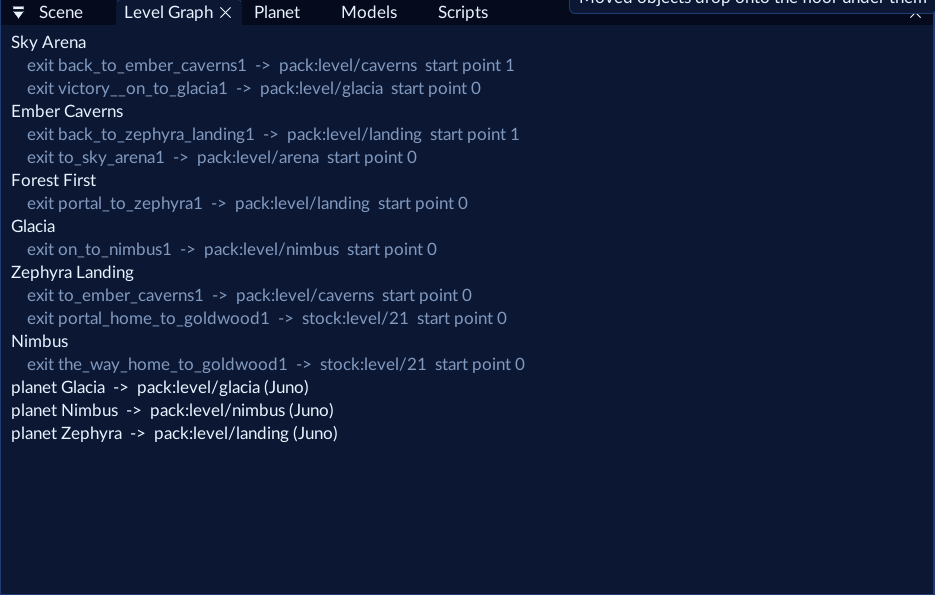
A list of every level, the exits in it and where they lead, then each planet’s entry level. Read-only.
Planet
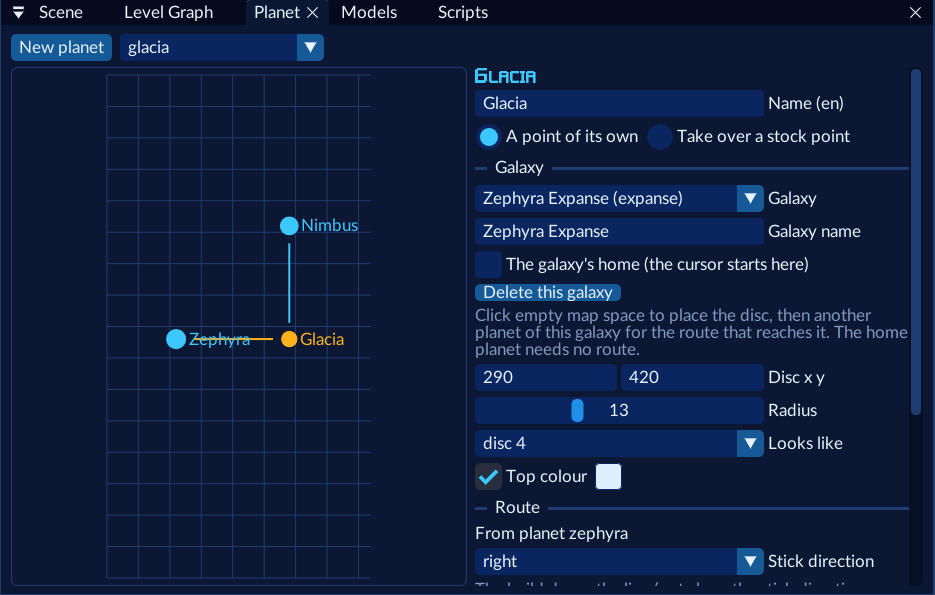
- New planet, and the planet to edit.
- A point of its own (a new disc and route) or Take over a stock point.
- Galaxy: the game’s, one of yours, or New galaxy…; for your galaxies, its name and home planet.
- Disc: position, radius, which stock disc it looks like, top colour.
- Route: where it leaves from and the stick direction; the build draws the line.
- Opens: from the start, with the stock point, once discovered, by a trigger, after another planet is entered or completed.
- Entry level for Juno, Vela and Lupus.
Models
Every model the game has an object type for, turnable and zoomable, with its size, triangles and users. Read-only, for finding the right type.
Kinds
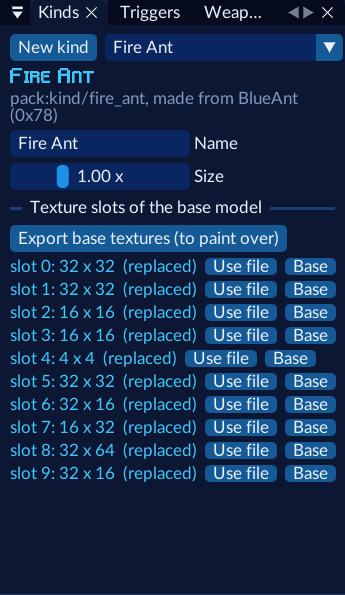
New kind picks a base type. Then Size, Export base textures (to paint over; from your ROM, not for
sharing), and per texture slot Use file (your kinds/<kind>/<slot>.png) or Base.
Triggers
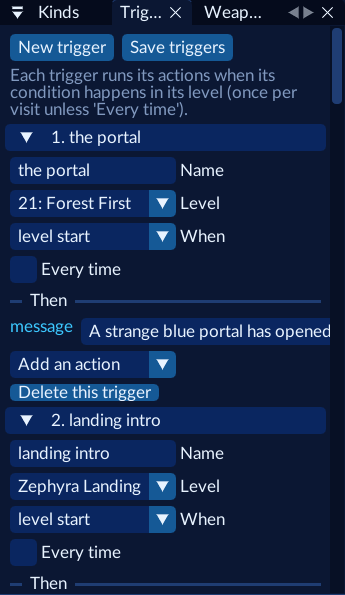
When (once per visit unless Every time):
| When | Fields | Fires |
|---|---|---|
| level start | The first tick in the level | |
| enter | Area x0 z0 x1 z1 (or Area from the Scene’s selection) | The hero is inside the box |
| flag | Game flag | That flag is set |
| door opens | Door id | A locked door opens (its squads are dead, its key used) |
| talk | Talker x z, radius, button (or Talker at the Scene’s selection) | The hero comes close (or presses the button there) |
Then:
| Action | Fields | Does |
|---|---|---|
| message | text, seconds | A line on screen |
| lines | one line per row | The next line each time; the last repeats |
| music, music_stop | track | Play or stop one of your OGGs |
| fog | colour, near, far | Fade the fog |
| flag | number, on | Set or clear a game flag |
| unlock_door | door id | Unlock as a squad’s death does |
| warp | level, start | Change level |
| spawn | type, x y z, from hero | Create an object (stock types only) |
| unlock planet, complete planet | planet | Open a planet, or complete one so the next opens |
Studio builds the triggers into a Lua script (scripts/_triggers.lua).
Weapons
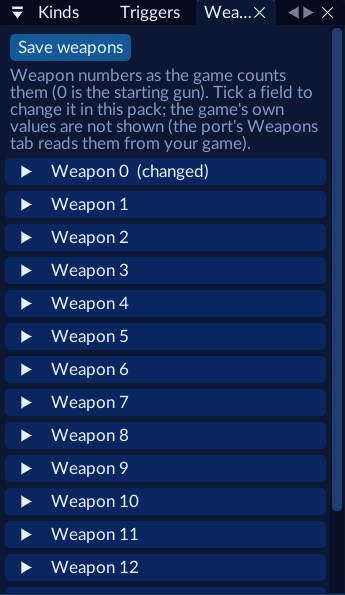
One section per weapon. Tick a field to change it: damage, delay, throw_delay, lifetime, spread_x, spread_y, speed. See the Weapons API for which weapon uses which field.
Scripts
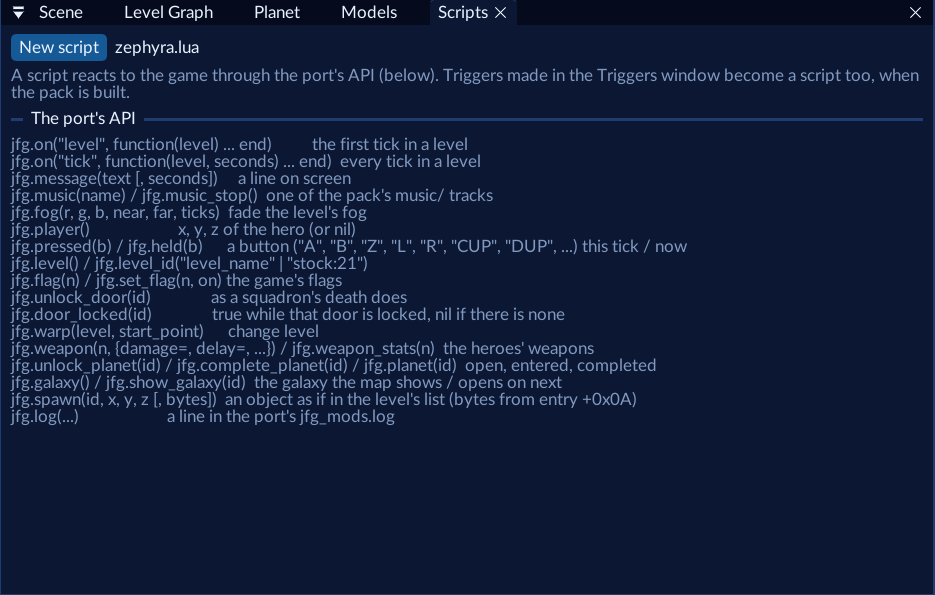
New script, one tab per scripts/*.lua, and Save script. Every .lua in scripts/ goes into the pack. See
Lua scripting.